

Use Send to Kindle, email your Kindle, or drag files via USB.
You want a fast, clean way to move your own books to a Kindle from a Mac. I have done this for years, across many devices and macOS versions.
This guide shows how to add books on kindle from mac with clear steps, simple tips, and real fixes you can trust. Read on to master each method and avoid common mistakes.
All the ways to add books from a Mac
There are four reliable paths, each with pros and cons. I use all of them, based on file type and speed needs. If you need an overview of how to add books on kindle from mac, start here.
The main options are:
- Send to Kindle for macOS. Fast, converts EPUB, syncs to all devices.
- Kindle email (Personal Documents). Simple and works anywhere with Wi‑Fi.
- USB transfer with Finder. Best for big files and offline moves.
- Calibre on Mac. Great for format fixes and metadata control.
Use the first two for simple EPUBs and quick sync. Use USB for local copies or very large PDFs. Use Calibre when you want clean titles, series, and covers.

Method 1: Send to Kindle on macOS
Send to Kindle works great with EPUB, PDF, DOCX, and images. It converts as needed and syncs to your Kindle library in the cloud. It is my daily driver.
Steps:
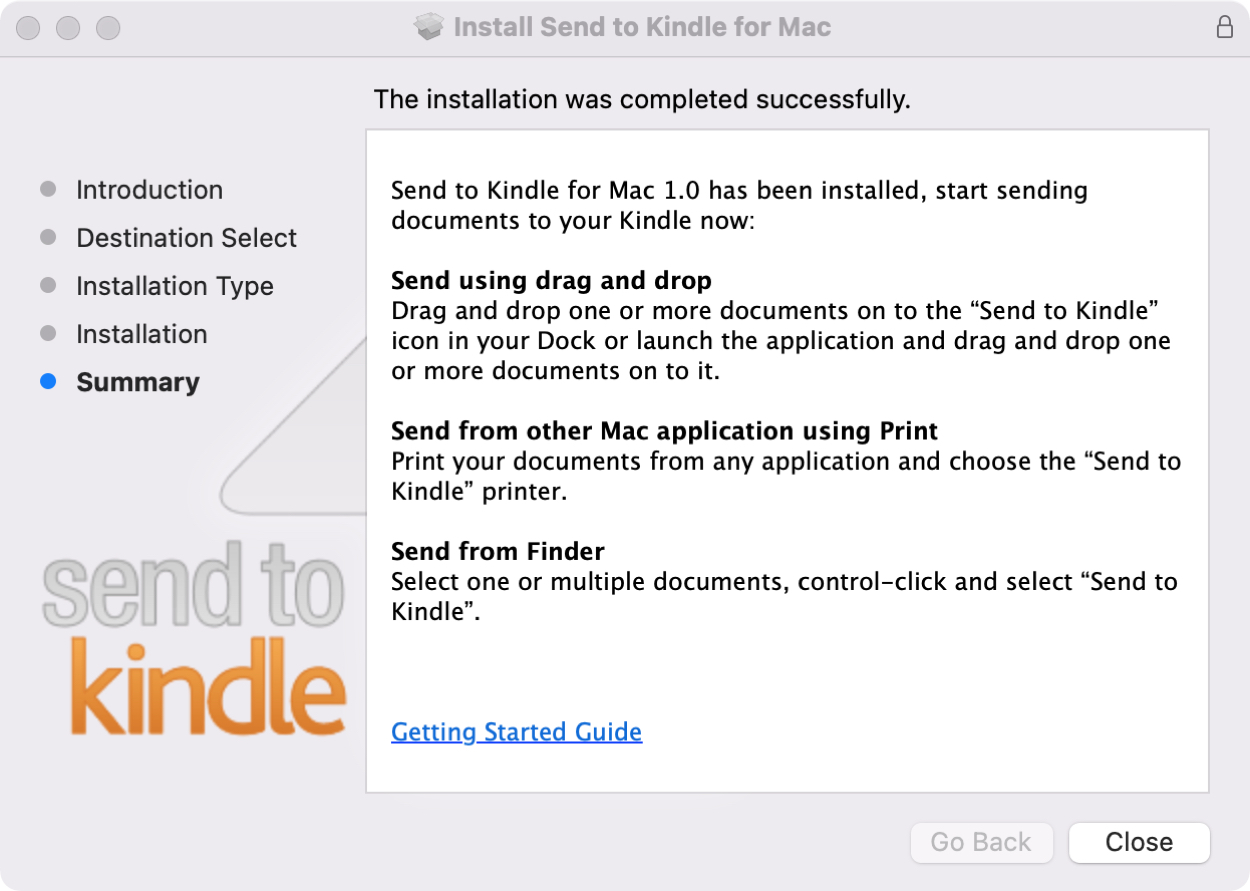
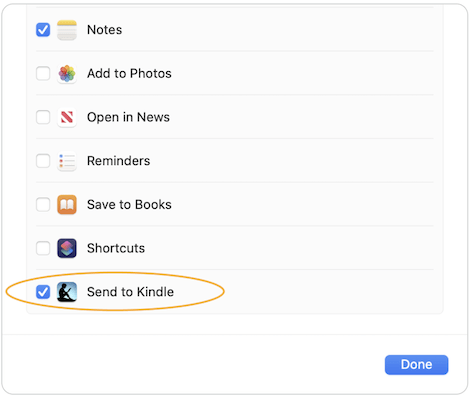
- Install the Send to Kindle app for Mac from Amazon. Sign in with your Amazon account.
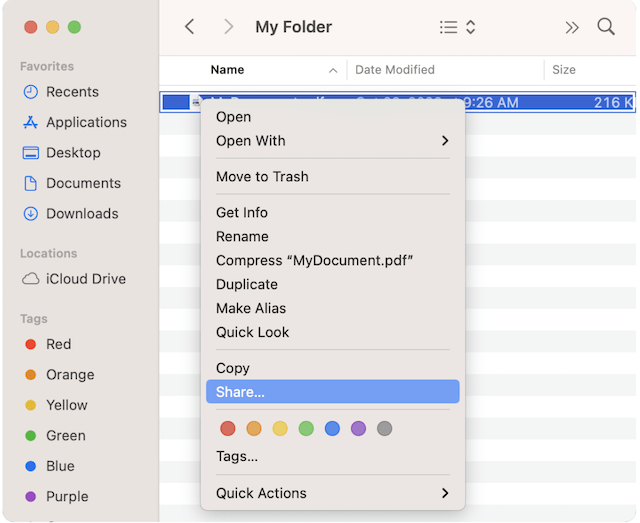
- In Finder, right‑click a book file. Choose Share, then Send to Kindle. Or open the app and drag files in.
- Pick your Kindle device or the Kindle library. Choose Deliver or Save to Library.
- For PDFs, you can select Convert to improve reflow. For EPUB, conversion is automatic for Kindle.
- Click Send. Connect your Kindle to Wi‑Fi. It will appear in your Library in a minute or two.
Notes that matter:
- Supported for Send to Kindle: EPUB, PDF, DOCX, RTF, TXT, HTML, images. Not MOBI.
- If you choose Save to Library, the book syncs to all Kindle apps and devices under your account.
- According to Kindle support, very large files may take longer to index after delivery.
This is often the best answer to how to add books on kindle from mac when you want cloud sync and simple steps.

Method 2: Email to your Kindle address
Every Kindle has a unique email. When you email a file there, it shows up on your Kindle. It is simple and works from any Mac.
Find and set it up:
- Go to your Amazon account. Open Manage Your Content and Devices.
- Find your Kindle device. Copy its Send‑to‑Kindle email address.
- Add your own Mac email to the Approved Senders list on the same page.
Send a book:
- Create an email to your Kindle address.
- Attach your file. Use EPUB, PDF, or DOCX.
- For PDFs, put Convert in the subject to reflow text better.
- Send the email. Connect your Kindle to Wi‑Fi and refresh the Library.
Useful limits and tips:
- Email attachment size is usually up to 25 MB per message. For bigger files, use Send to Kindle or USB.
- Give the device a short time to index. Large PDFs can take longer.
- Check your spam folder or approved list if nothing arrives.
If you prefer simple and wireless, this is an easy way for how to add books on kindle from mac.
Method 3: USB transfer with Finder
USB is fast, private, and great for huge files. It also works when Wi‑Fi is not an option.
Do this:
- Use a data‑capable cable. Many Kindles use USB‑C now. Older ones use micro‑USB.
- Unlock your Kindle. Connect it to your Mac. Tap Allow on the Kindle if it asks to share files.
- In Finder, open the Kindle drive. Open the Documents folder.
- Drag supported files into Documents. Good types: AZW3, KFX, MOBI (legacy), PDF, TXT.
- Eject the Kindle in Finder. Unplug the cable.
- On Kindle, open Library. Filter by Downloaded or Recent to see the new book.
Why USB:
- No cloud copy. Good for privacy or side‑loaded archives.
- Faster for big comics and PDFs.
- Works even when your Kindle will not connect to Wi‑Fi.
This path answers how to add books on kindle from mac when you need speed and control.

Method 4: Use Calibre on macOS for power users
Calibre is a free, pro‑grade tool. It can convert formats, fix titles, add covers, and send to device.
Here is a clean setup:
- Install Calibre for Mac. Open it and pick your device type.
- Click Add books and select your files.
- Select a book and click Edit metadata. Fix the title, author, series, and cover.
- Click Convert books. For Kindle e‑readers, AZW3 is a safe choice for USB. For cloud delivery, use EPUB then Send to Kindle.
- Connect your Kindle by USB. Click Send to device in Calibre.
- Eject the Kindle and check your Library.
Important notes:
- Do not try to remove DRM. Only use DRM‑free, public domain, or your own documents.
- AZW3 reads well on most Kindles. KFX can work too, but AZW3 is simpler to manage by USB.
- Calibre can bulk edit and merge series, which saves a lot of time.
If you care about metadata and tidy shelves, Calibre is the best tool for how to add books on kindle from mac with clean results.
Pick the right format and conversion tips
The right format saves time and looks better on the screen. Here is what works well today.
Best picks by method:
- Send to Kindle or Email: Use EPUB. It converts to a Kindle format for you.
- USB sideload: Use AZW3, KFX, or PDF. MOBI is legacy but still works by USB on many devices.
- PDFs: Great for fixed layout or technical docs. Not ideal for small screens unless converted.
Smart conversion tips:
- For text books, prefer EPUB for Send to Kindle. It renders well and supports highlights, fonts, and hyphenation.
- For large PDFs, try Convert in Send to Kindle. Or convert in Calibre to AZW3 and review the result.
- For comics and manga, try PDF or use panels packaged with Kindle Comic Converter. Then test on your device.
When unsure about how to add books on kindle from mac with best quality, choose EPUB for cloud and AZW3 for USB.

Organize, sync, and keep your Library tidy
A tidy Kindle saves time and reduces stress. Small habits help a lot.
Workflows that work:
- Save to Library in Send to Kindle so the book syncs to all devices.
- Use Collections on the Kindle to group series, topics, or courses.
- In Calibre, set series names and numbers before sending. Your shelves will look neat.
- Check covers after transfer. If a cover is missing, restart the Kindle to refresh.
Sync notes:
- Personal documents can sync if you Save to Library. Highlights and notes also sync across devices that support them.
- If a book does not appear on another device, pull down to refresh the Library or toggle Wi‑Fi.
Good organizing is the last step of how to add books on kindle from mac that people often skip. Do it once and your future self will thank you.
Troubleshooting common issues
I have seen most errors and odd bugs. Here is how to fix them fast.
If email or Send to Kindle fails:
- Confirm your sender email is on the Approved list.
- Check Wi‑Fi on the Kindle and battery level.
- Look at Manage Your Content and Devices. See if the item shows as Pending.
If files do not show after USB:
- Make sure you copied to the Documents folder, not root.
- Eject the Kindle before unplugging. Then restart the device.
- Try a different cable. Some cables only charge and do not pass data.
If the book says Unsupported:
- EPUB by USB is not supported. Use Send to Kindle or convert to AZW3 first.
- Some files have DRM. Those cannot be added unless bought within the Kindle store.
If indexing drains battery:
- Search for a nonsense string like zzq on the Kindle. It will show items still indexing.
- Leave it plugged in on Wi‑Fi until the count goes to zero.
AirDrop confusion:
- AirDrop does not work with Kindle e‑readers. Use Send to Kindle, email, or USB instead.
These fixes cover most blockers in how to add books on kindle from mac when things do not go as planned.

Safety, DRM, and legal notes
Be smart and stay within the rules. It keeps your account safe.
Key points:
- Only add DRM‑free books, your own files, or public domain works.
- Do not strip DRM from purchased content. It can break laws in many places.
- Respect file shares and licenses from authors and stores.
This is the ethical side of how to add books on kindle from mac. It protects you and creators.
My fast Mac-to-Kindle workflow
I switch between speed and control. Here is the flow I use in real life.
For most reading:
- I download EPUBs to my Downloads folder.
- I right‑click and choose Send to Kindle. I Save to Library so it syncs everywhere.
- I check the cover and series on my Kindle. Done.
For research PDFs:
- I send by USB for speed.
- I rename files to Title – Author.pdf before I copy them. It helps me find them later.
- If the PDF is cramped, I resend with Convert using Send to Kindle.
For big cleanups:
- I run Calibre. I fix metadata, set series, and convert to AZW3.
- I send by USB in batches. I let the Kindle index while plugged in.
This mix keeps me fast and tidy. It also nails how to add books on kindle from mac without fuss.
Frequently Asked Questions of how to add books on kindle from mac
What file types work best from a Mac to Kindle?
Use EPUB for Send to Kindle or email. Use AZW3, KFX, or PDF for USB transfer.
Can I send books to Kindle without Wi‑Fi?
Yes, by USB with Finder. Cloud methods need Wi‑Fi to deliver and sync.
Why did my MOBI not show up with Send to Kindle?
MOBI is no longer supported by Send to Kindle. Use EPUB for cloud or copy MOBI by USB if your Kindle supports it.
Where do I find my Kindle email address?
In Amazon under Manage Your Content and Devices. Open Devices, select your Kindle, and copy the Send‑to‑Kindle address.
How do I convert EPUB to a Kindle format on Mac?
Use Send to Kindle for automatic conversion. Or use Calibre to convert to AZW3, then copy by USB.
Why is my book missing its cover on Kindle?
Restart the Kindle and refresh the Library. If sent by USB, embed the cover in Calibre before transfer.
Can I organize sideloaded books into Collections?
Yes, create Collections on the Kindle and add the books. If saved to Library via Send to Kindle, many collections also sync.
Conclusion
Moving your own books should be quick and calm. With Send to Kindle, email delivery, USB copy, and Calibre, you now know how to add books on kindle from mac in any situation. Pick the method that fits the file and your goal, then keep a simple workflow that you can trust.
Try one method today. Set up your Kindle email, install Send to Kindle, or build a Calibre library. If this helped, share it, subscribe for more practical guides, or leave a question so I can help you fine‑tune your setup.